> ## Documentation Index
> Fetch the complete documentation index at: https://docs.mathfi.ai/llms.txt
> Use this file to discover all available pages before exploring further.
# Training
> Step-by-step guide to training predictive models on MathFi.ai, covering dataset creation, model training, and running predictions.
This guide outlines the core process of preparing data, train models and run predictions within MathFi.ai platform.
### Overview
You can interact with MathFi.ai in two ways:
1. **Web Dashboard** — For research, PoC, and interactive model training with hyperparameter tuning (what this guide is about)
2. **REST API/Python** — For programmatic, production-ready use of your trained models via the MathFi.ai API (see [API guide](/developers/api-overview))
All data and models are securely logged and stored on the cloud under your account.
##### How classification type is determined
* The MathFi.ai platform automatically detects whether the task is **binary or multi-class classification**.
* A balanced test set is generated using your labelled training data.
* High accuracy generally implies good **F1 Score** and **AUC** (Area Under the Curve).
### Video walkthrough
Now you can continue reading this detailed step by step guide or watch this video walkthrough (present also in the [Getting started](/quickstart) guide) on how to create datasets, training models and predict outcomes within MathFi.ai platform.
### Dataset creation
Before proceeding, ensure your dataset CSV is formatted correctly by following [CSV Format Guide](/guides/input-csv-creation)
1. **Login to the MathFi.ai dashboard.**
2. **Click "Datasets"** in the top-right menu.
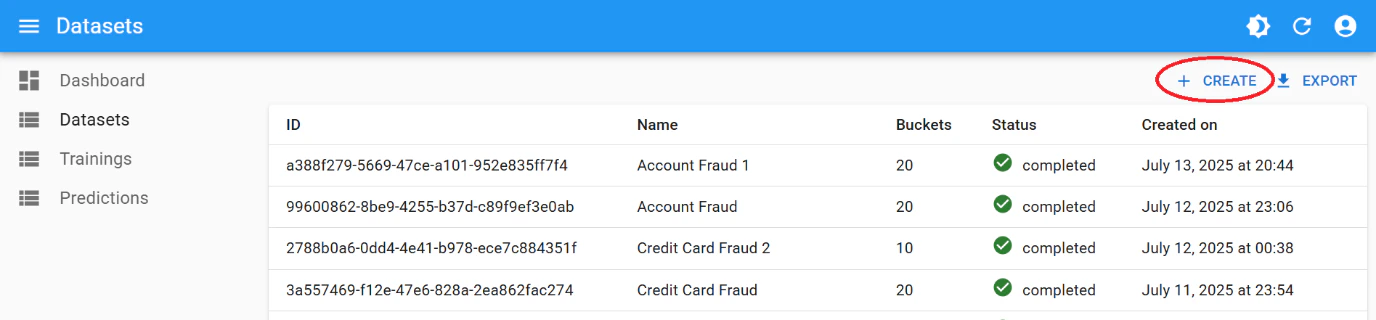
3. **Click "+ Create"** to start a new dataset.
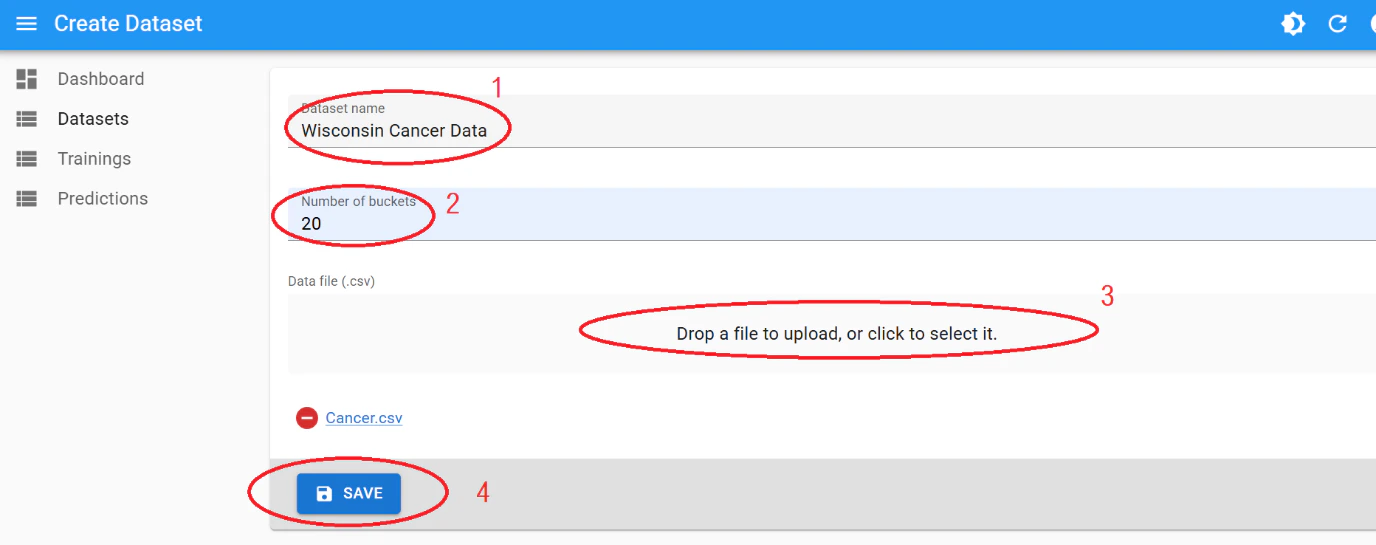
4. **Enter a name** for your dataset.
5. **Set the number of buckets**: default is 20 (range: 4–100).
6. **Upload your labelled CSV file.**
7. **Click "Save"**.
After this, the dataset will start processing. This may take up to few minutes or hours depending on the size and complexity of the data.
### Model training
The dataset must have finished processing before attempting to train a model with it
1. Navigate to **"Trainings"** in the sidebar.
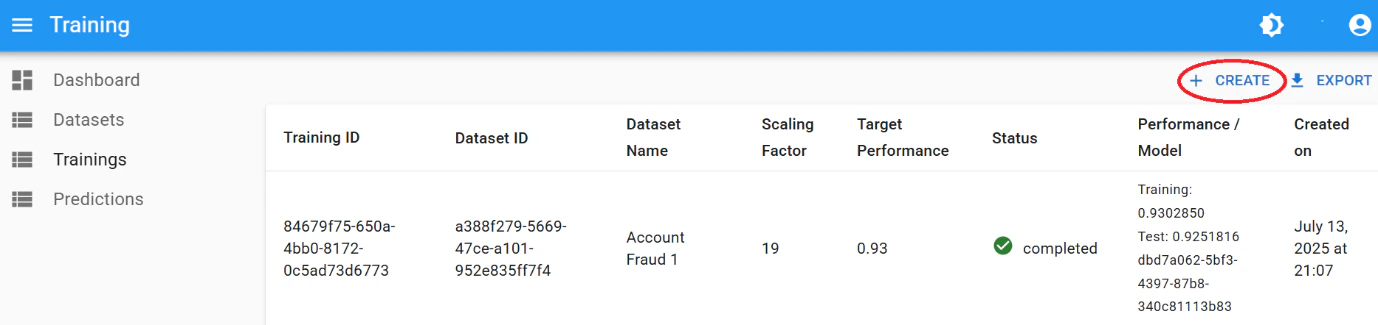
2. Click **"Create"**.
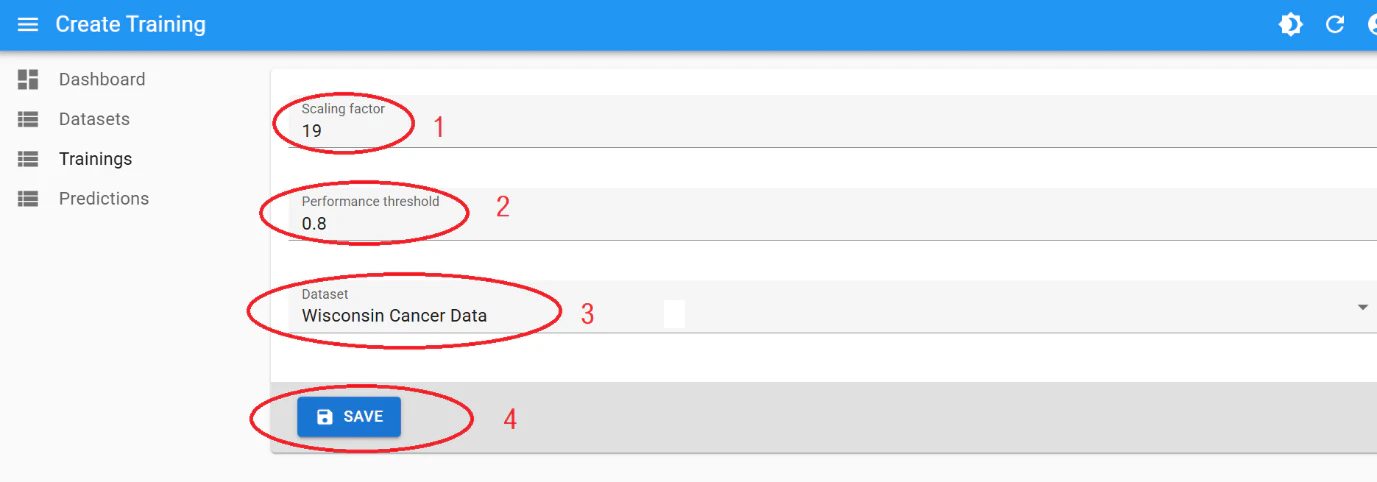
3. Configure the training:
* **Scaling Factor**: (default: 19, range: 8–499)
* **Performance Threshold**: (value between 0 and 1)
* Select your **dataset** from the dropdown.
4. Click **"Save"**.
The platform runs 4 algorithms in parallel and selects a new **champion model** if one outperforms the rest.
#### Understanding training results
* The accuracy reflects the performance on a **balanced, unseen 10% test set**.
* Logs and metrics are saved with the model.
* Further training with tuned hyperparameters can improve performance. See [Hyperparameter tuning guide](/guides/hyperparameter-tuning)
### Prediction running
Predictions can be run once training has been completed and the first champion model is created
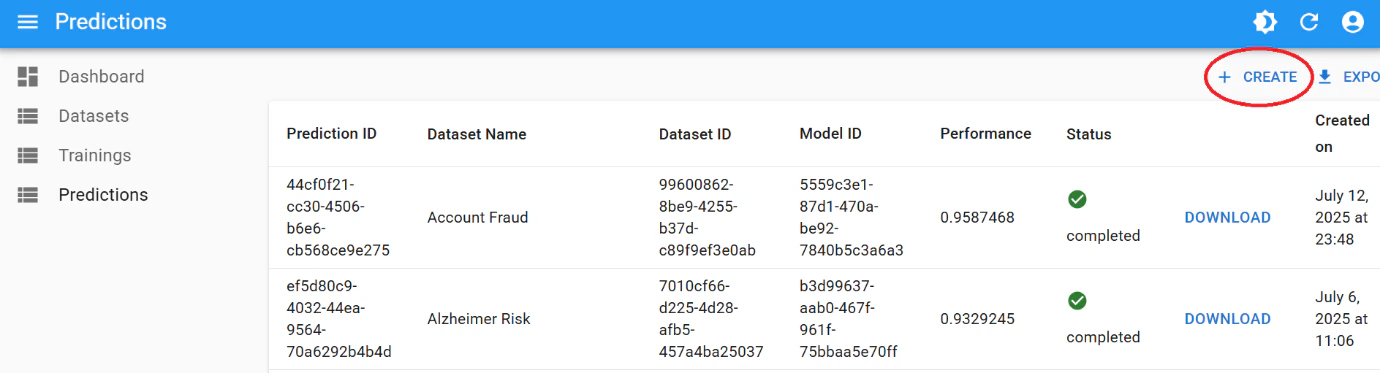
1. Click **"Predictions"** in the left menu.
2. Click **"Create"**.
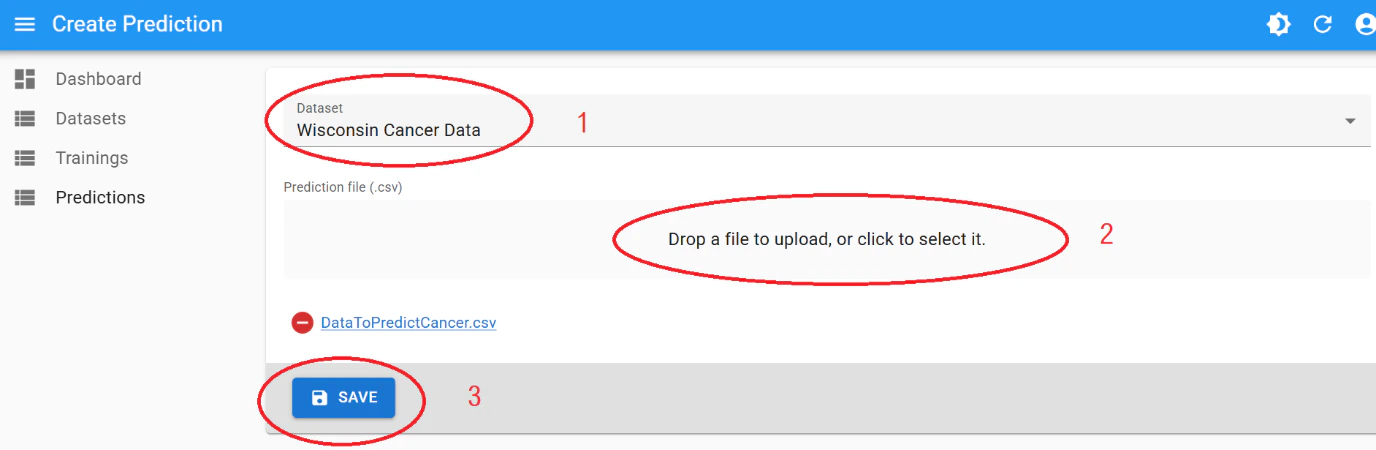
3. Select:
* Your **original training dataset**
* Your **batch prediction CSV** (see [CSV Format Guide](/guides/input-csv-creation) for instructions on how to create)
4. Click **"Save"**.
#### Downloading results
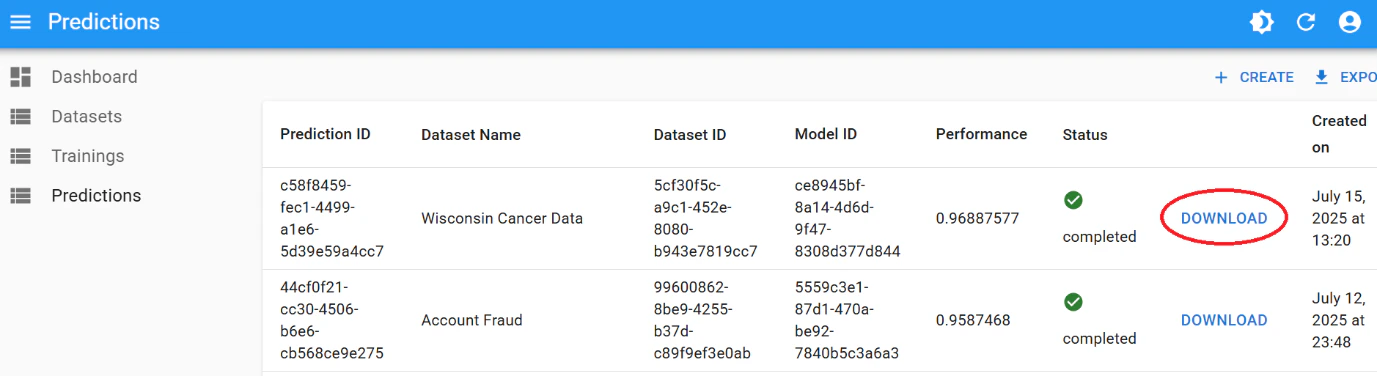
Monitor progress on the `Predictions` listing page. Once finished, click **"Download"** to retrieve your prediction results.
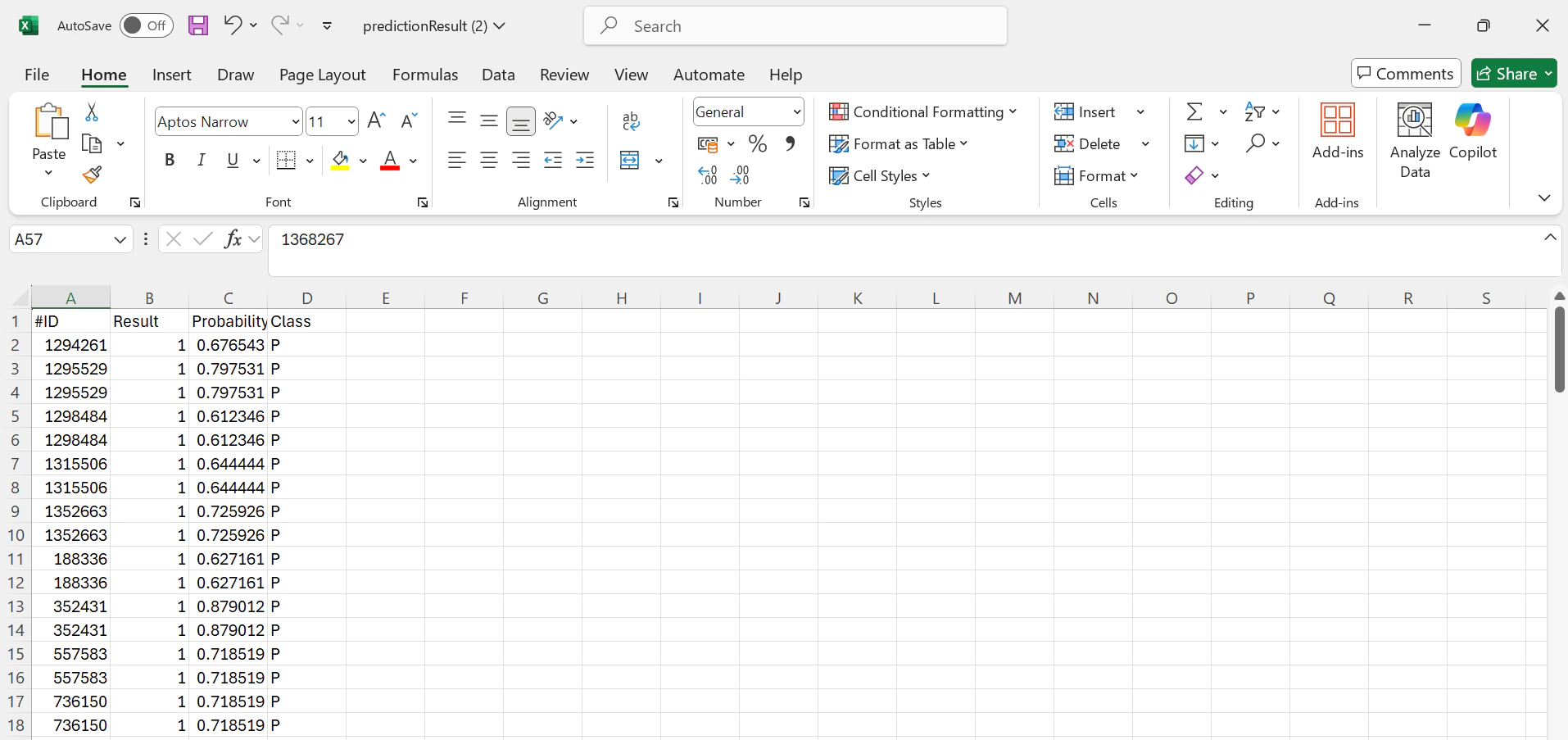
Results include **predicted labels** and their **probability scores**.
#### Recap
| Stage | Description |
| ---------- | --------------------------------------------- |
| Dataset | Upload labelled CSV, set number of buckets |
| Training | Set scaling factor & threshold, train model |
| Prediction | Upload unlabelled CSV, get prediction results |
See also: [Hyperparameter tuning](/guides/hyperparameter-tuning) to improve model performance, and real-world examples in [Healthcare](/use-cases/healthcare) and [Credit Card Approval](/use-cases/credit-card-approval).
***
### Regression use case
The MathFi.ai platform is mainly designed for classification. However, you can solve **regression** type prediction problems with high accuracy by converting continuous targets into discrete classes.
#### Example: Wind Turbine Power prediction
1. Bin the output range (e.g., 0–2000 kW) into classes:
* 0–200 kW → Class 1
* 200–400 kW → Class 2
* ...
* 1800–2000 kW → Class 10
2. Train a multi-class classifier on these buckets.
3. To increase granularity:
* Take the winning bin (e.g., 400–600 kW)
* Divide it further (e.g., 10 × 20 kW sub-bins)
* Train again for finer predictions.
***
### Troubleshooting NaN predictions
Predictions may occasionally return NaN probability values when the number of buckets is insufficient for the model to make a confident prediction. To resolve this, create a new dataset with a higher number of buckets and retrain. If NaN values persist, your training dataset may need more labelled samples.
 3. **Click "+ Create"** to start a new dataset.
 4. **Enter a name** for your dataset.
5. **Set the number of buckets**: default is 20 (range: 4–100).
6. **Upload your labelled CSV file.**
7. **Click "Save"**.
4. **Enter a name** for your dataset.
5. **Set the number of buckets**: default is 20 (range: 4–100).
6. **Upload your labelled CSV file.**
7. **Click "Save"**.
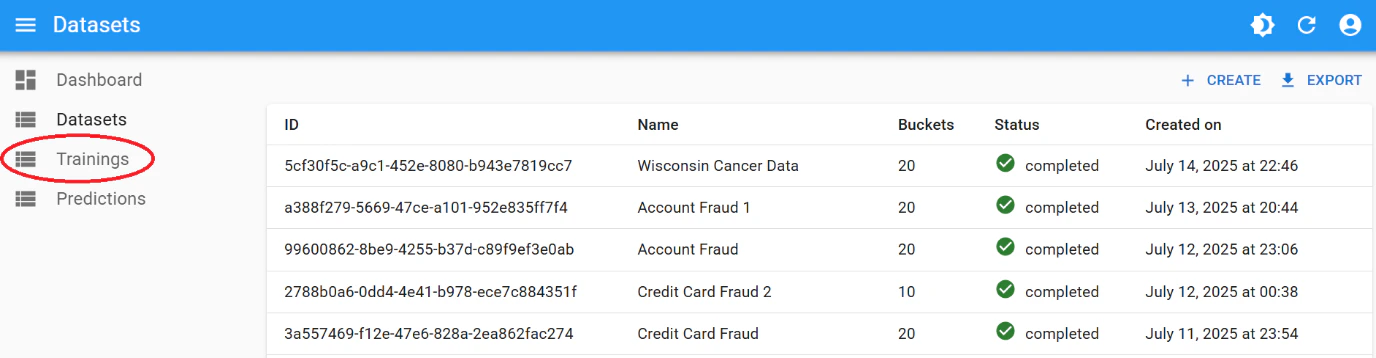 2. Click **"Create"**.
 3. Configure the training:
* **Scaling Factor**: (default: 19, range: 8–499)
* **Performance Threshold**: (value between 0 and 1)
* Select your **dataset** from the dropdown.
3. Configure the training:
* **Scaling Factor**: (default: 19, range: 8–499)
* **Performance Threshold**: (value between 0 and 1)
* Select your **dataset** from the dropdown.
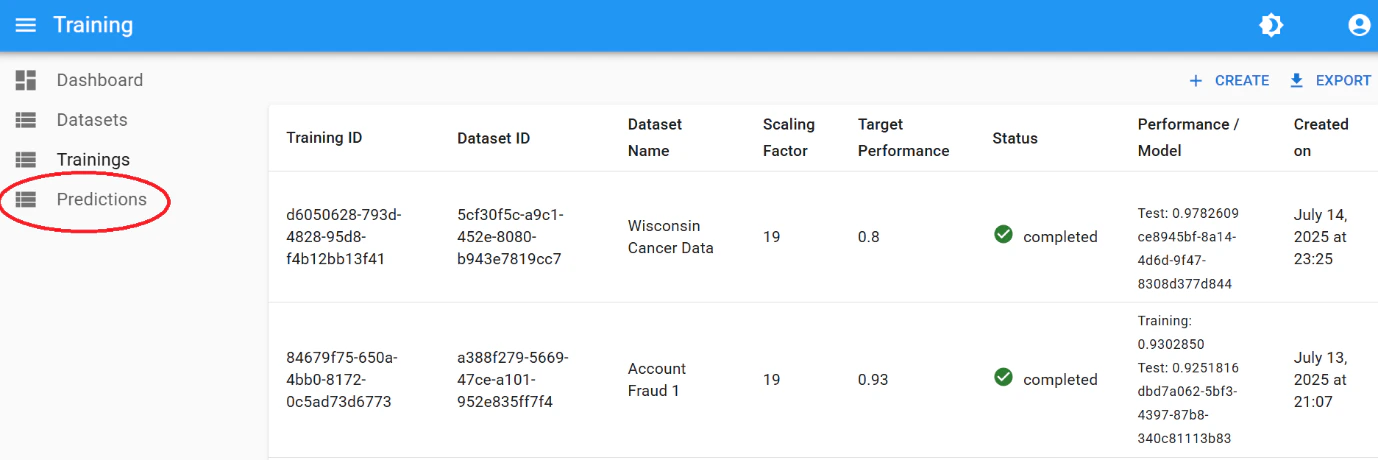 2. Click **"Create"**.
 3. Select:
* Your **original training dataset**
* Your **batch prediction CSV** (see [CSV Format Guide](/guides/input-csv-creation) for instructions on how to create)
3. Select:
* Your **original training dataset**
* Your **batch prediction CSV** (see [CSV Format Guide](/guides/input-csv-creation) for instructions on how to create)
 #### Downloading results
Monitor progress on the `Predictions` listing page. Once finished, click **"Download"** to retrieve your prediction results.
#### Downloading results
Monitor progress on the `Predictions` listing page. Once finished, click **"Download"** to retrieve your prediction results.