

Overview
You can interact with MathFi.ai in two ways:- Web Dashboard — For research, PoC, and interactive model training with hyperparameter tuning (what this guide is about)
- REST API/Python — For programmatic, production-ready use of your trained models via the MathFi.ai API (see API guide)
How classification type is determined
- The MathFi.ai platform automatically detects whether the task is binary or multi-class classification.
- A balanced test set is generated using your labelled training data.
- High accuracy generally implies good F1 Score and AUC (Area Under the Curve).
Dataset creation
Before proceeding, ensure your dataset CSV is formatted correctly by following CSV Format Guide
- Login to the MathFi.ai dashboard.
-
Click “Datasets” in the top-right menu.

-
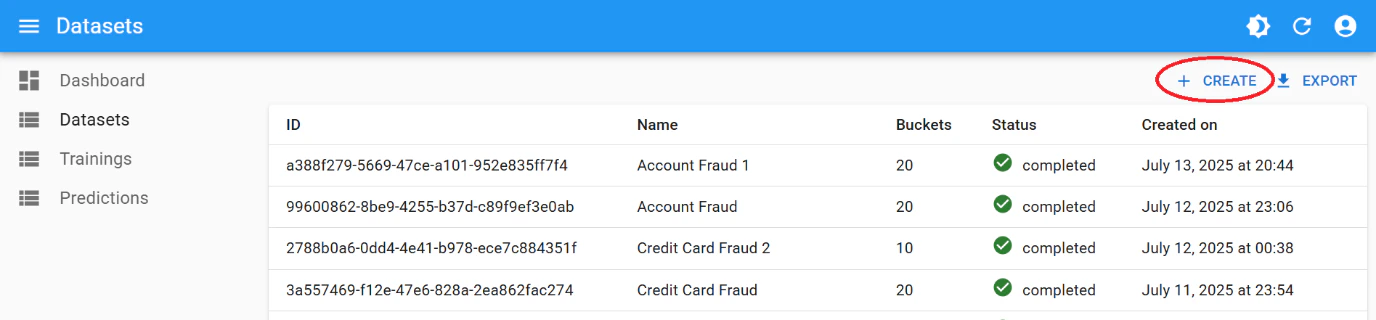
Click ”+ Create” to start a new dataset.
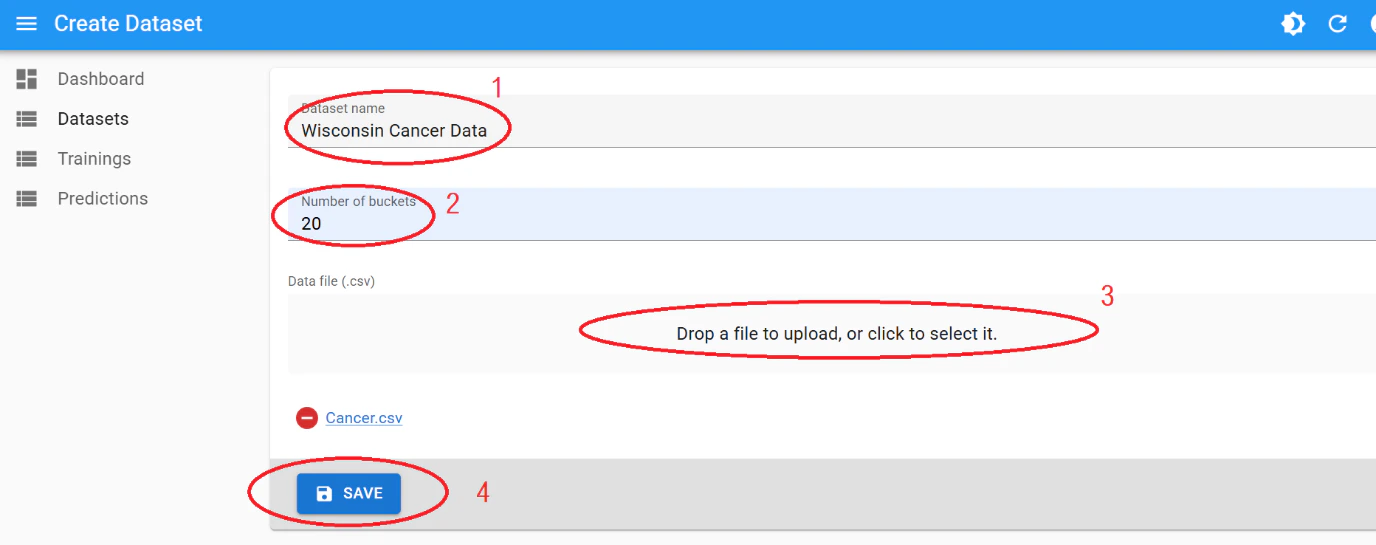
- Enter a name for your dataset.
- Set the number of buckets: default is 20 (range: 4–100).
- Upload your labelled CSV file.
-
Click “Save”.
After this, the dataset will start processing. This may take up to few minutes or hours depending on the size and complexity of the data.
Model training
The dataset must have finished processing before attempting to train a model with it
-
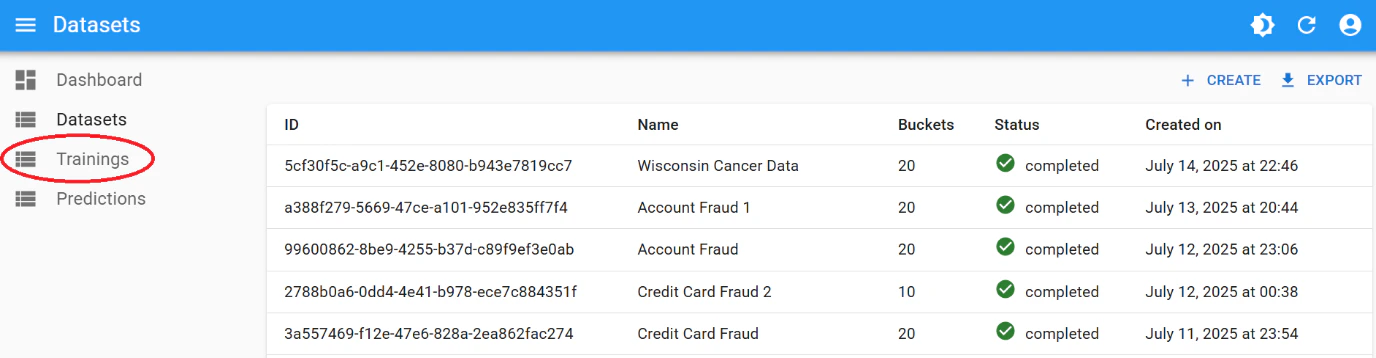
Navigate to “Trainings” in the sidebar.
-
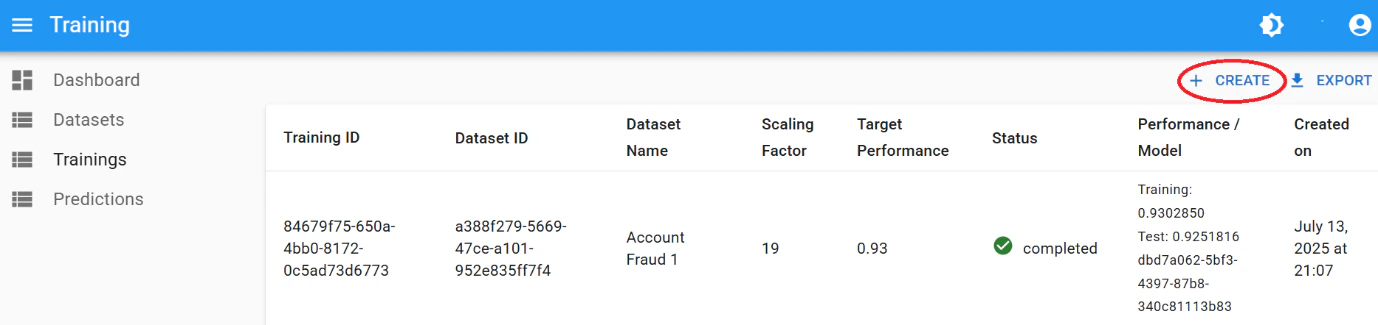
Click “Create”.
-
Configure the training:
- Scaling Factor: (default: 19, range: 8–499)
- Performance Threshold: (value between 0 and 1)
- Select your dataset from the dropdown.
-
Click “Save”.
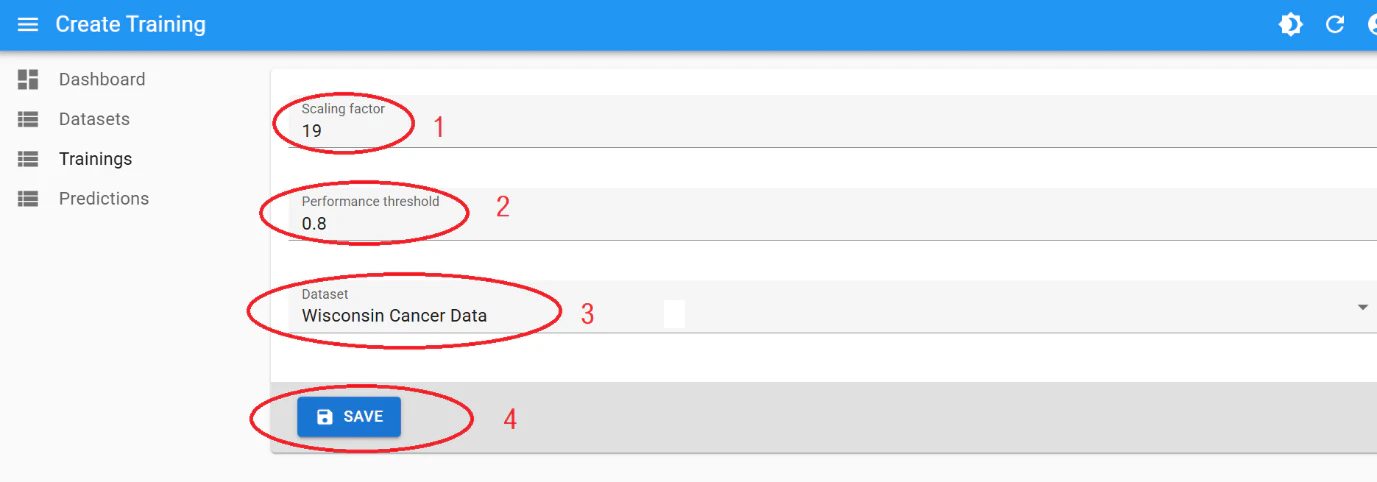
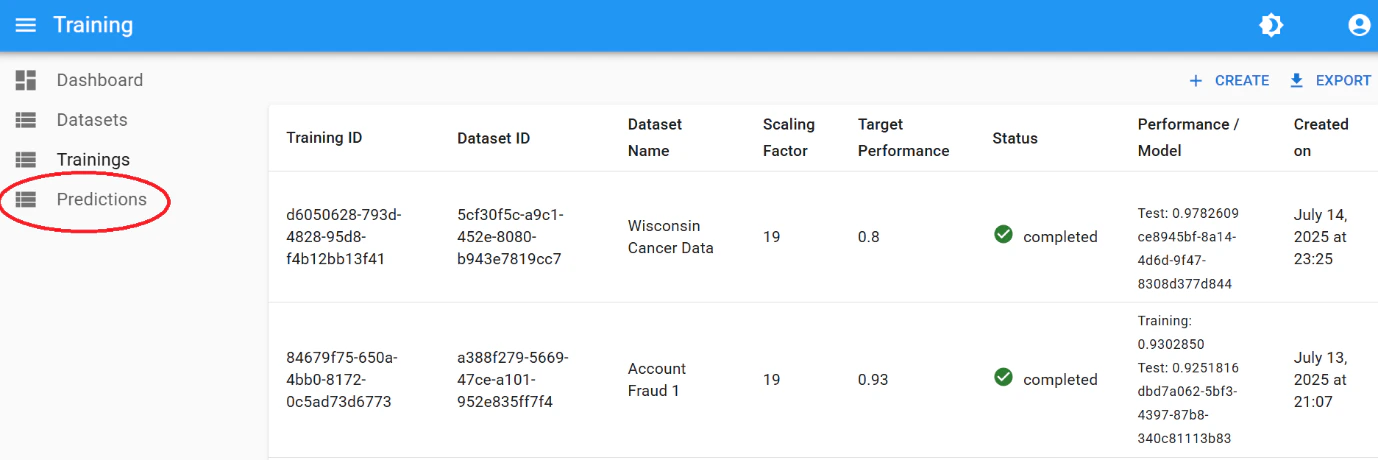
The platform runs 4 algorithms in parallel and selects a new champion model if one outperforms the rest.
Understanding training results
- The accuracy reflects the performance on a balanced, unseen 10% test set.
- Logs and metrics are saved with the model.
- Further training with tuned hyperparameters can improve performance. See Hyperparameter tuning guide
Prediction running
Predictions can be run once training has been completed and the first champion model is created
-
Click “Predictions” in the left menu.
-
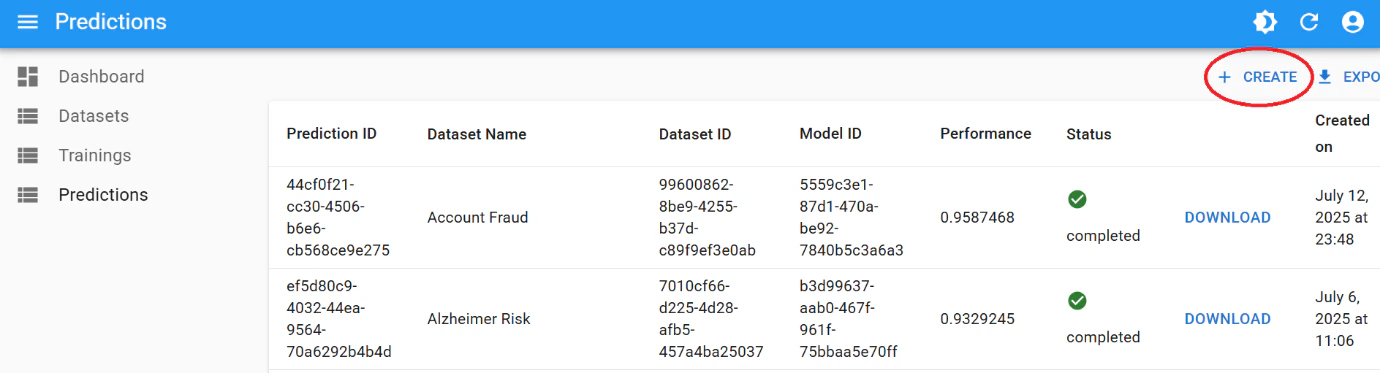
Click “Create”.
-
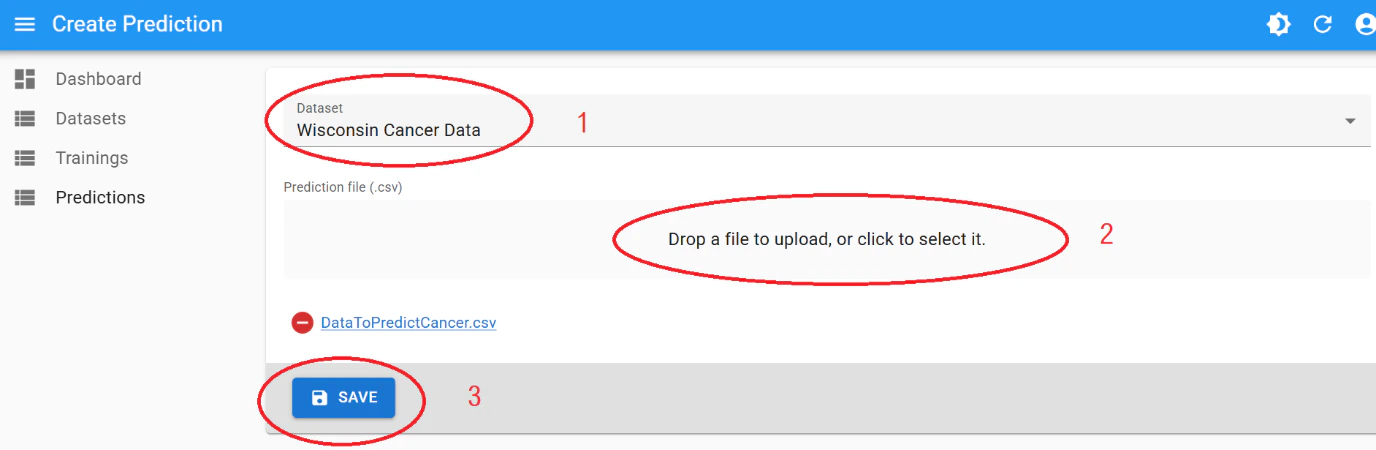
Select:
- Your original training dataset
- Your batch prediction CSV (see CSV Format Guide for instructions on how to create)
-
Click “Save”.
Downloading results
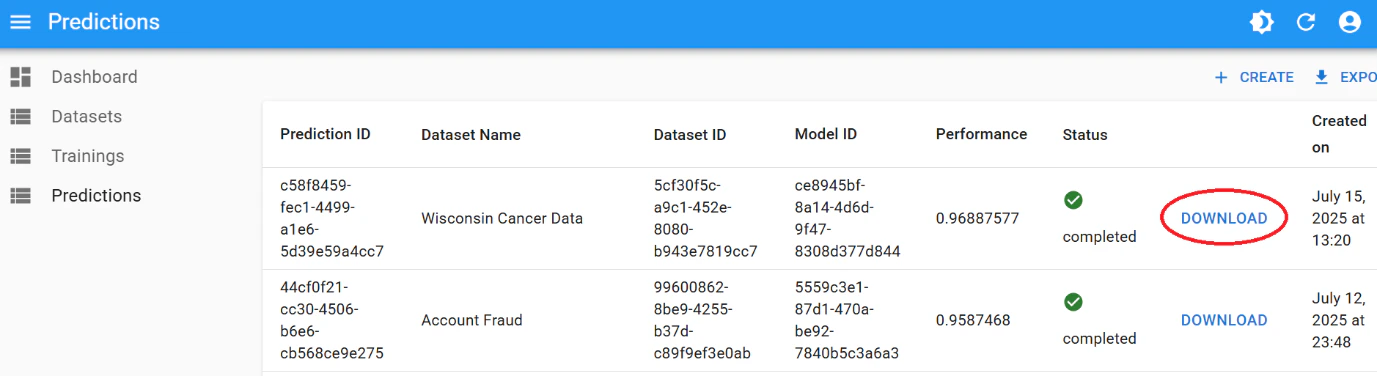
Monitor progress on thePredictions listing page. Once finished, click “Download” to retrieve your prediction results.
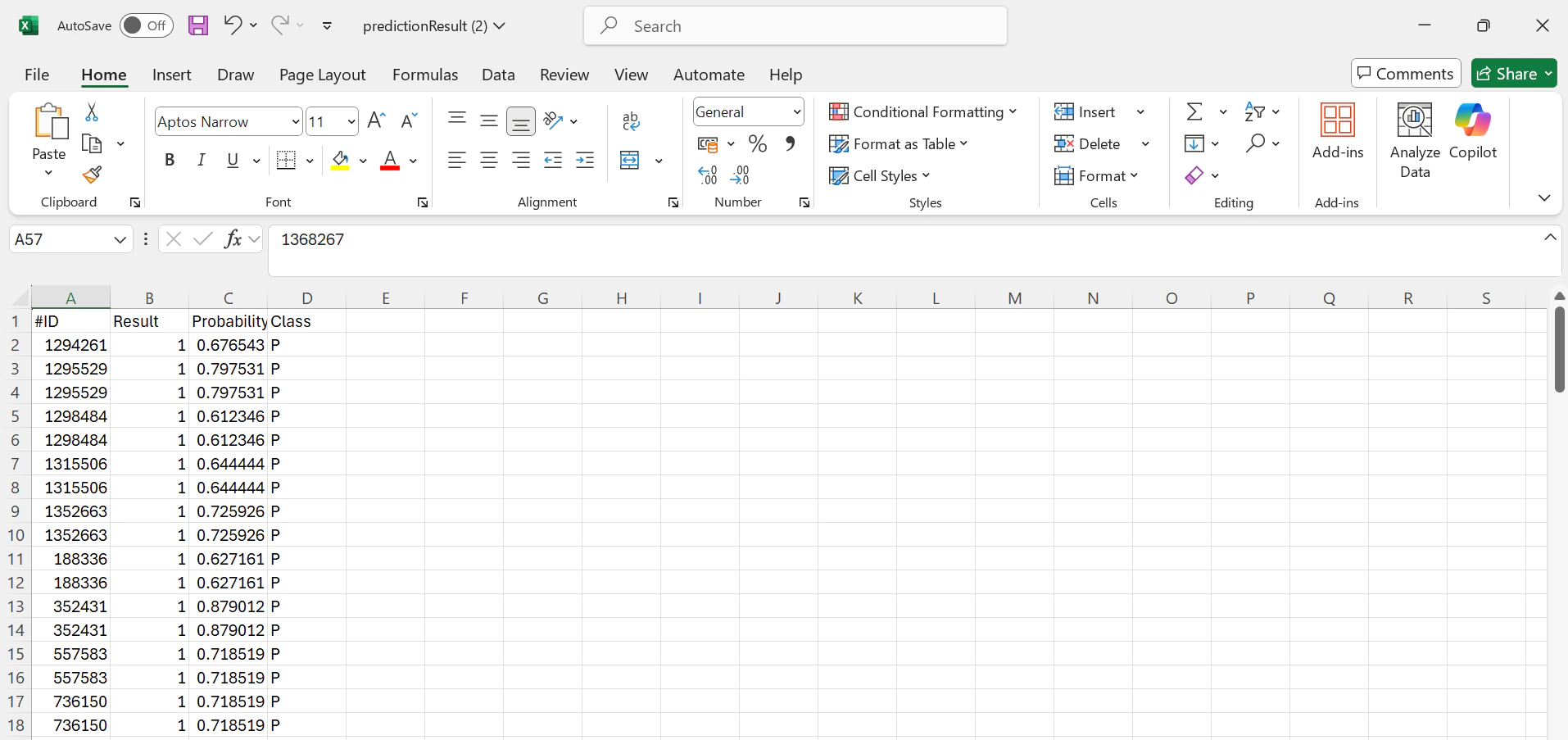
Results include predicted labels and their probability scores.
Recap
See also: Hyperparameter tuning to improve model performance, and real-world examples in Healthcare and Credit Card Approval.
Regression use case
The MathFi.ai platform is mainly designed for classification. However, you can solve regression type prediction problems with high accuracy by converting continuous targets into discrete classes.Example: Wind Turbine Power prediction
-
Bin the output range (e.g., 0–2000 kW) into classes:
- 0–200 kW → Class 1
- 200–400 kW → Class 2
- …
- 1800–2000 kW → Class 10
- Train a multi-class classifier on these buckets.
-
To increase granularity:
- Take the winning bin (e.g., 400–600 kW)
- Divide it further (e.g., 10 × 20 kW sub-bins)
- Train again for finer predictions.